



















Using shortcut keys well can get twice the result with half the effort What powerful shortcuts have you used?
In the process of our daily work, Will use a lot of office software, Page review, Code check and other requirements, Many actually have their own shortcut keys, Good at using shortcut keys, Get twice the result with half the effort, Effectively improve efficiency.
The first powerful shortcut key combination: Ctrl+E, It is very useful
01, Merge all dates
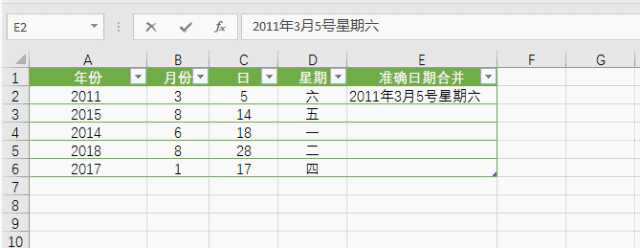
For example, I need to merge all the dates together, Just write one line: 2011 year 3 month 5 Saturday the th
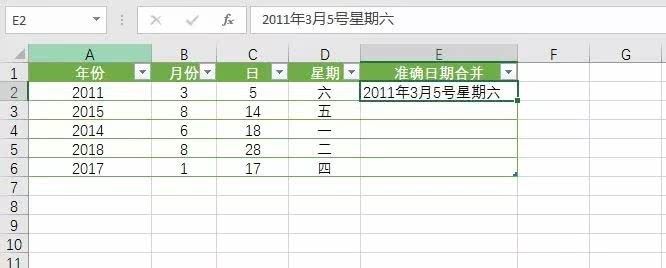
Then place the cursor in the next row of cells that need to be merged, Use this shortcut key: Ctrl+E, You can fill it all
02, Change date style
I now want to change the display style of the date, Then you can also use this shortcut key
Let's write another line on the first line excel Recognizable style: 2011. 03. 05. Saturday
Then place the cursor in the next row of cells that need to be merged, Use this shortcut key: Ctrl+E, You can fill it all
03, Split display mobile number
The data we collect is often like this: No split data
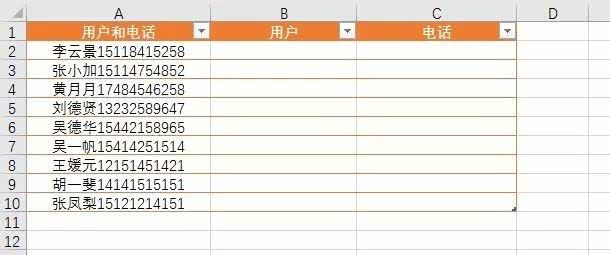
If we split one by one, If there are hundreds of customers, It's troublesome. Then you can use this shortcut key
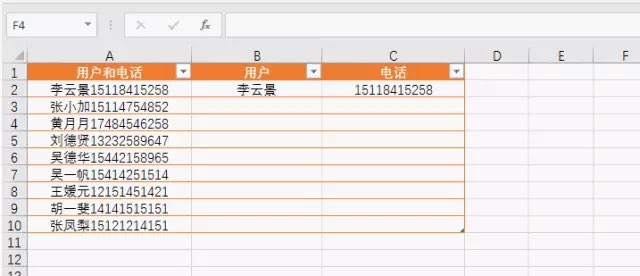
Let's write the first line first, Give Way Excel Be able to recognize the split style.
Then place the cursor in the next row of cells that need to be merged, Use this shortcut key: Ctrl+E, You can fill it all
**04, Add description attribute
Let's continue to add customer attributes at the end of the table below. client property: Zhang Xiaohua (A client of Li Yunjing)
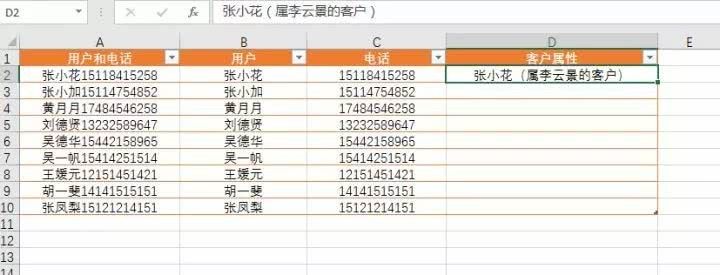
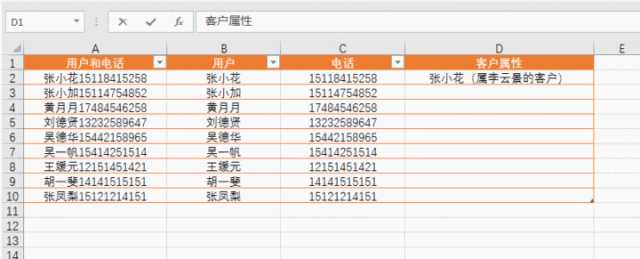
Do the same, Let's write the first line first, Give Way Excel Be able to recognize the split style: Zhang Xiaohua (A client of Li Yunjing)
Then place the cursor in the next row of cells that need to be merged, Use this shortcut key: Ctrl+E, You can fill it all
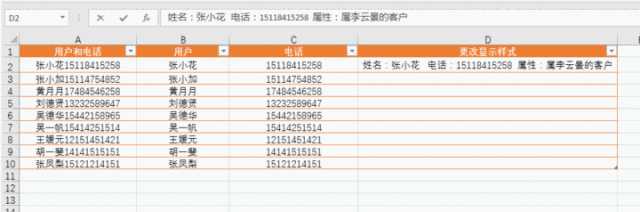
05, Change the display style
Then place the cursor in the next row of cells that need to be merged, Use this shortcut key: Ctrl+E, You can fill it all
06, Exchange sequence
Let's change the following names and phone numbers first.
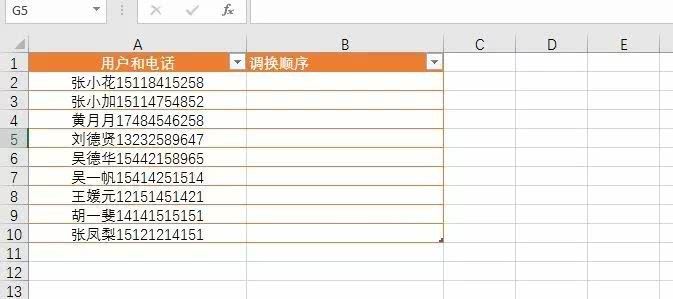
Then place the cursor in the next row of cells that need to be merged, Use this shortcut key: Ctrl+E, You can fill it all
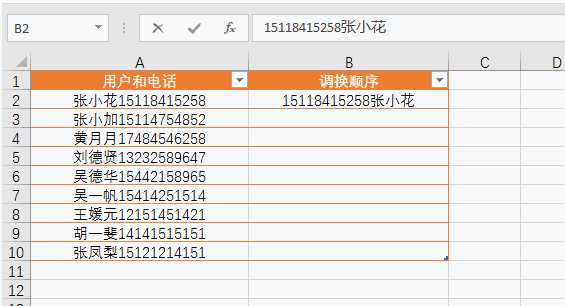
07, Extract data
We now want to extract name data from all user information below.
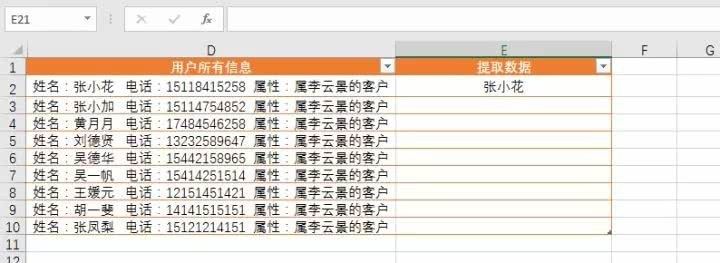
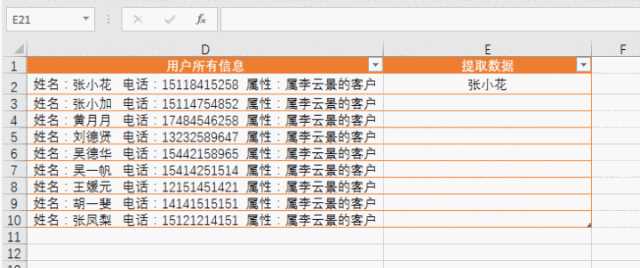
Let's write the first line first, Give Way Excel Be able to recognize the split style: Zhang Xiaohua
Then place the cursor in the next row of cells that need to be merged, Use this shortcut key: Ctrl+E, You can fill it all
the second: F12 Developer tool shortcuts
I don't know if you have tried to open the following developer tool interface in the browser accidentally
Or open it like this: The code is at the bottom
It doesn't matter, We can adjust the display position of the window in the upper right corner.
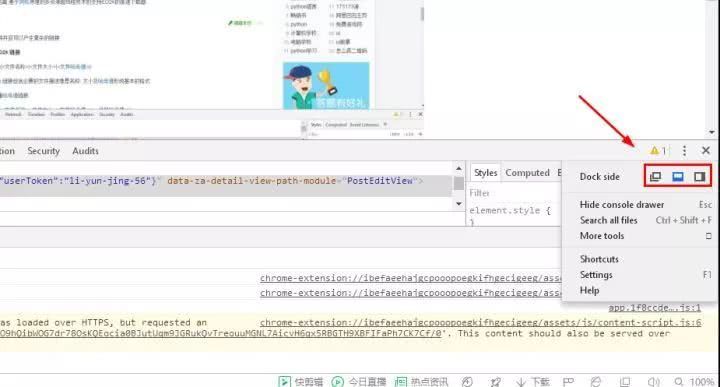
How does this code window appear?
We can press the shortcut key F12, Or right click on the web page to select [Review elements]

You can open this developer tool.
So this developer tool, For us non programmers, What's the use?
one: Copy text that cannot be copied
For example, I shared an article in Zhihu, I set it not to be reproduced, So if someone wants to copy my text, The following logo will appear [Reprint prohibited] , That is, others can't copy my article.
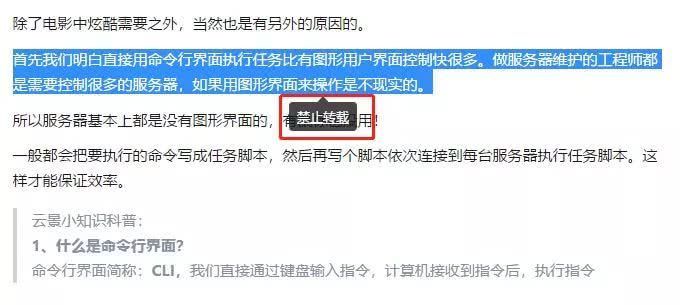
however, Others just like this paragraph, Just want to quote, So how to copy this passage of mine?
At this time F12 Developer tools come in handy.
We press F12, Or right click to select [Review elements] , Call up developer tools
Then use the find shortcut key: Ctrl+F, Then find the first few words of the text we want to copy there, You can find the source code of the text.
At this time, we right-click the mouse in the text source code, choice [copy] , You can copy it.
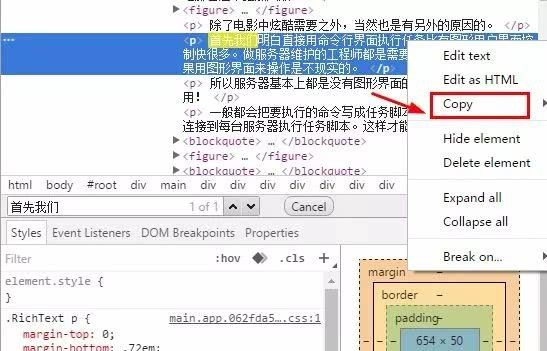
two, You cannot right-click the mouse to select a saved picture for downloading
First, we open a website that cannot download pictures directly, Then use the shortcut key F12, Or right click to select [Review elements] , Then select [nerwork] , Reselect [Img] , Most web pages are structured like this, Some pictures will be [sources] There column, In short, it's enough to find the location of the image resources.
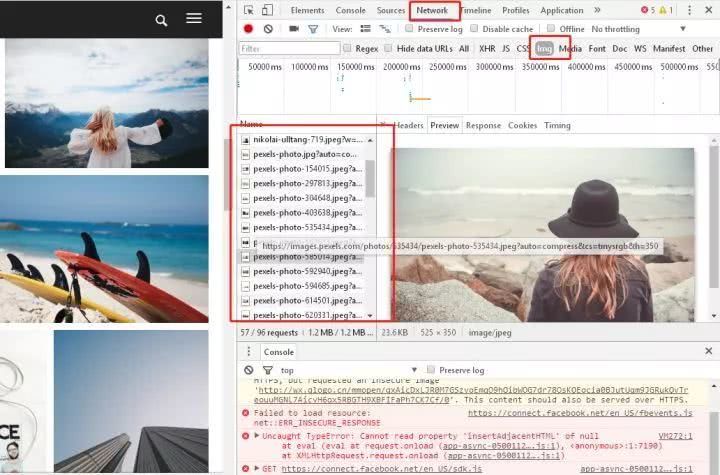
The right column is the image resources we need to find
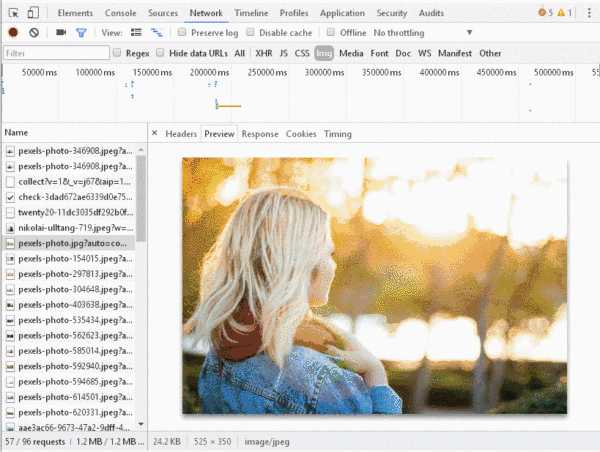
Find the image resources we need on the right, Then right click the mouse to select [Open image in new tab] , Open picture on new page.
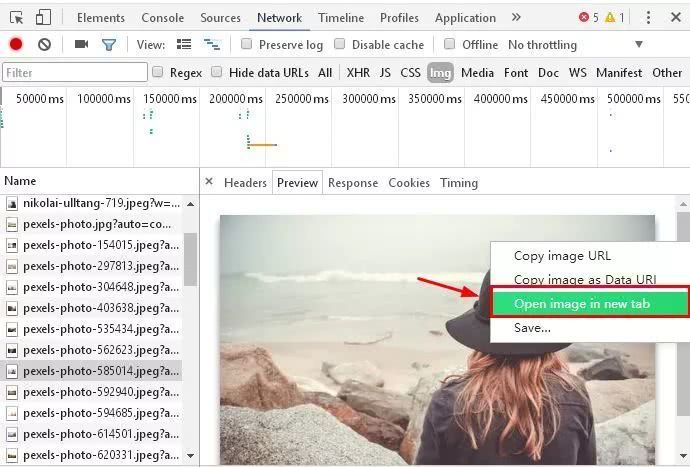
Then you can right-click the mouse and save it as a download image resource

Third: F4 Tips for using shortcut keys.
It's in Word Medium role
01, Quickly unify text format
Except format brush, We can also use F4 To quickly unify the format of text, And for complex text formats, F4 Shortcut keys may be more efficient
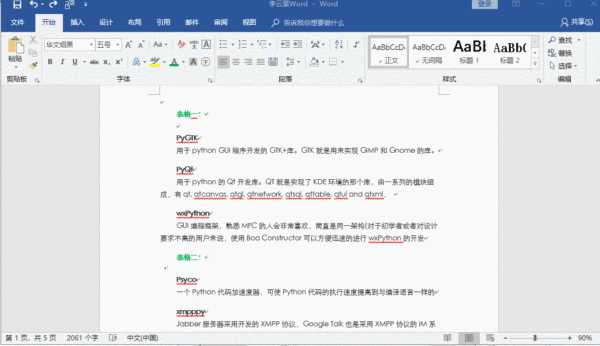
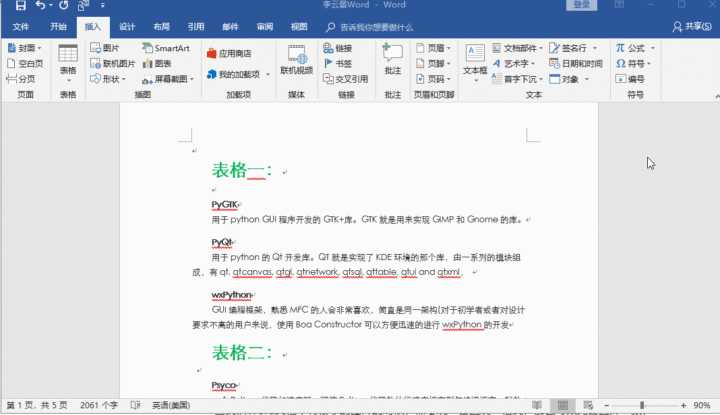
02, Quick text table generation function
We often need to turn words into tables, And if the table counts more than one picture, Direct use F4 To generate the table repeatedly is much faster than inserting the table step by step.
03, Quickly unify picture formats
When we Word When there are many pictures in the document, Unified format is required, Then you can set up one first, Then use the shortcut key F4, Take the first photo as an example, Format

of course, F4 stay Word There are many quick and convenient applications in, stay Excel in, This shortcut key is also excellent and convenient.
01, unified Excel format
stay Excel in, It can also be like Word Same as in the document, Repeat the last set format
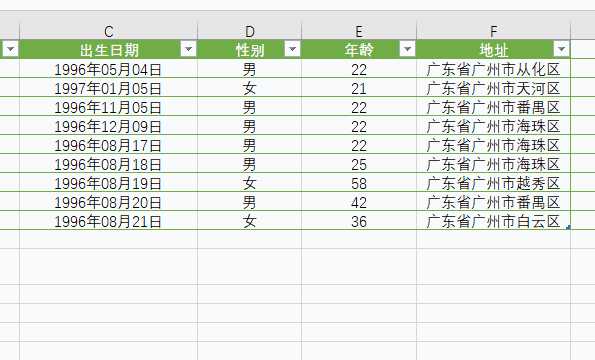
02, Quickly unify merged cells when merging cells, You don't need to find the button function of merging cells every time, Direct use F4 The shortcut key repeats the previous step, which is much faster.
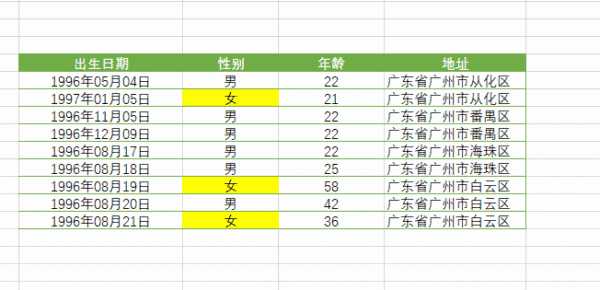
stay Excel Medium F4 There are many more applications, There are no more examples here, stay PPT China is equally powerful, in general, F4 Repeat the previous step, It can greatly reduce your workload.
-
Article classification: Industry information
-
Number of views: 4506 Browse times
-
Release date: 2019-12-23 14: 38: 22
-
Article link: https: //www. fangcloud. com/cms/hyzx/404. html
-
 华诺科技与 360 Fangcloud达成战略合作, 共推 AI 大模型产业化落地
 -
 360 Fangcloud AI 增值服务上线, 超大限时优惠等你来!
 -
 Introduction of listed companies controlled by central enterprises 360 FangCloud Enterprise Online Disk, Build a smart collaborative cloud platform
 -
 in国水利水电第七工程局, 北京石油化工学院等签约 360 Fangcloud
您可能感兴趣的文章
- 360 Fangcloud关于全面落实人工智能生成内容标识与Administration的重要通知
- 360 Fangcloud×DeepSeek-R1 满血版, 提效新choice, 免费领取会员权益!
- 如何choice适合enterprise需求的优质file store共享平台?
- 如何choice适合enterprise需求的公司file storeAdministrationsoftware?
- enterprise级私有file storesystem如何提升enterprise数据与Administration效率?
- 如何choice适合enterprise需求的公司file storeAdministrationsoftware?
- 哪款好用的网盘适合日常file store和分享?
- 有什么好的共享网盘吗? 适合团队协作和file store的choice有哪些?
- choice哪好用的网盘更适合日常file store与分享?
- stay众多共享网盘in, 共享网盘哪好更适合file store与分享?
Popular recommendations
- 360 Yifang cloud assistance 500 Strengthening enterprise Jingke energy to realize multi place efficient collaboration
- 华诺科技与 360 Fangcloud达成战略合作, 共推 AI 大模型产业化落地
- 360 Fangcloud AI 增值服务上线, 超大限时优惠等你来!
- Introduction of listed companies controlled by central enterprises 360 FangCloud Enterprise Online Disk, Build a smart collaborative cloud platform
- 江苏霍普律师事务所携手 360 Fangcloud, 提升案件协作效率
- in国水利水电第七工程局, 北京石油化工学院等签约 360 Fangcloud
- in国酒业巨头introduce 360 FangCloud Enterprise Online Disk, 安全Administration文件, 团队高效协同
- in国人民university, in国科学院university等众多客户签约 360 Fangcloud
- Facilitate digital transformation, 3 Manufacturing enterprises 360 Yifang Cloud efficient collaborative office
- 天津医科university总医院: 借助 360 Fangcloud实现文件安全Administration

最新推荐
- ISC. AI. 2026: 数智化-型资料合集
- in国信通院: enterprise级智能体技术与应用研究报告 (2026 year)
- 走向 Agent-Native! 360AI 知识库打通业务底座, Give Way人与 AI 自然协同
- 告别重复劳动, Fangcloud如何Give Way多律所跑出「AI 加速度」?
- OpenClaw x Fangcloud Skill: 用 OpenClaw 调教出的 "AI 团队" , 比我本人还卷
- OpenClaw × Fangcloud|能干活, 有记忆, 懂业务, 这才是enterprise想要的 "数字员工"
- 航空 AI 白皮书发布, 重塑航空未来, Give Way知识成为生产力
- 360 亿方智能 : 航空 AI 白皮书
- 智慧升级, 教育革新: 200+高校choice 360 Fangcloud, 共绘智慧校园蓝图
- Appear 2024 AI+研发数字 (AiDD) 峰会, 360 智能文档云引领行业 AI 生态建设

 Enterprise cloud disk
 AI 知识库


 浙公网安备 33011002015048 号
 Online service
 Phone consultation